If you’re looking to replace a security that your clients own, or simply want to know who’s invested in something, it’s quick and easy to find this out. Go to Portfolio Management > Securities in Practice, right click the security name and choose View Portfolios with Holding
In order to help advisers get up to speed using Morningstar Adviser Workstation, and discover the features that can assist with managing a practice, we are currently in the process of updating the training content. Visit the new support & training page for screenprints, video clips and more at /training/training-essentials/
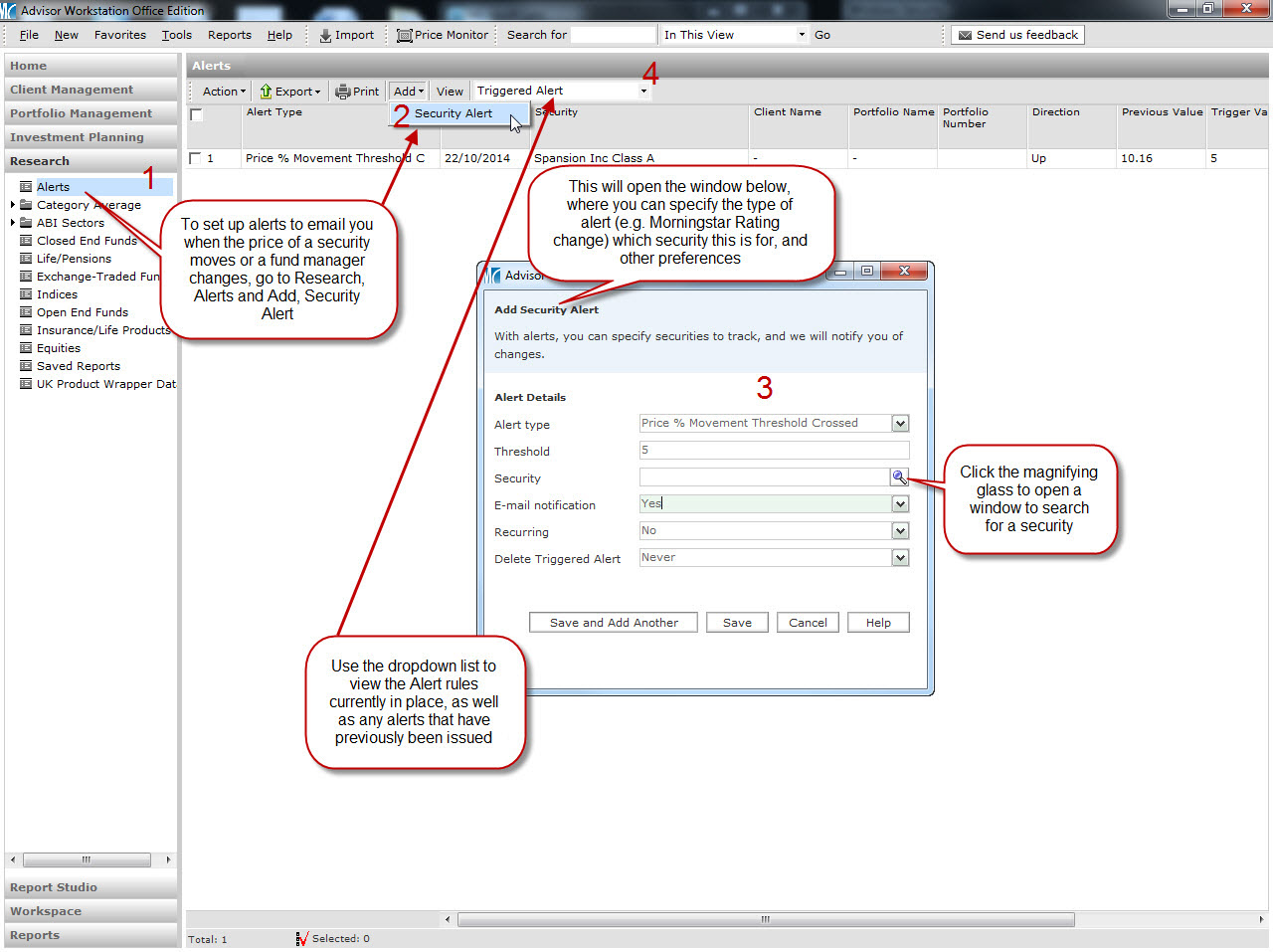
Below is an example of content, in this case how security alerts can be set up:
Nominees for Morningstar European Fund Manager of the Year Awards 2012 have been announced, and Adviser Workstation can give you a closer look at the managers, their funds and our Morningstar Analyst Ratings.
The Morningstar European Fund Manager of the Year Awards draw from the expertise of Morningstar’s European fund analyst team and recognise a select number of fund managers in Europe who have demonstrated excellence in the past year and in their stewardship of fund shareholder capital over the long term. The awards are presented in two distinct categories: Fund Manager of the Year: European Equity and Fund Manager of the Year: Global Equity.
The nominees for the Morningstar European Fund Manager of the Year Awards 2012 are:
European Equity:
Fabio Di Giansante, Pioneer Funds Euroland Equity
Charles Montanaro, Montanaro European Smaller Companies
Laurent Dobler and Arnaud Cosserat, Renaissance Europe
Global Equity:
J. Kristoffer, C. Stensrud, Knut Harald Nilsson, Cathrine Gether, and Ross Porter, SKAGEN Kon-Tiki
Andrew Headley and Charles Richardson, Veritas Global Equity Income and Veritas Global Focus
Rajiv Jain, Vontobel Global Value Equity and Vontobel Emerging Markets Equity
Nominations for the awards are made by Morningstar’s European fund research team of 30 analysts located in the United Kingdom, France, Germany, Italy, Spain, The Netherlands, Finland, and Norway. To qualify for a nomination, at least one fund under a fund manager’s leadership must have a qualitative fund rating assigned from Morningstar.
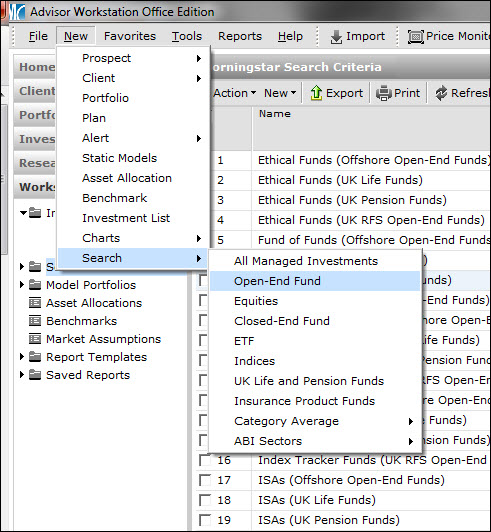
To find the funds in Adviser Workstation, run a search in the Open-End funds universe by going to New>Search>Open-End Fund.
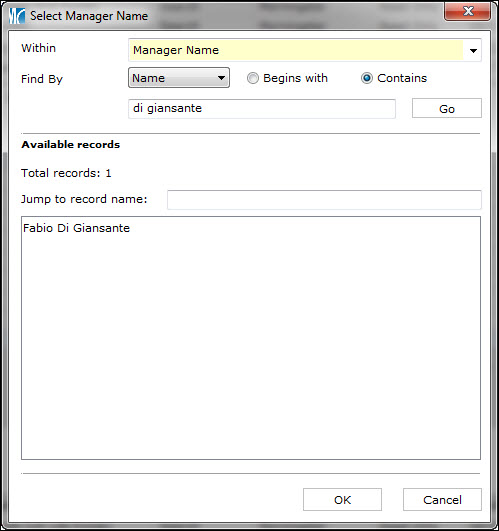
In the first row under Field Name, scroll to find Manager Name, then type in the name and click GO. Once you’ve found the manager, click OK to add the name to the search.
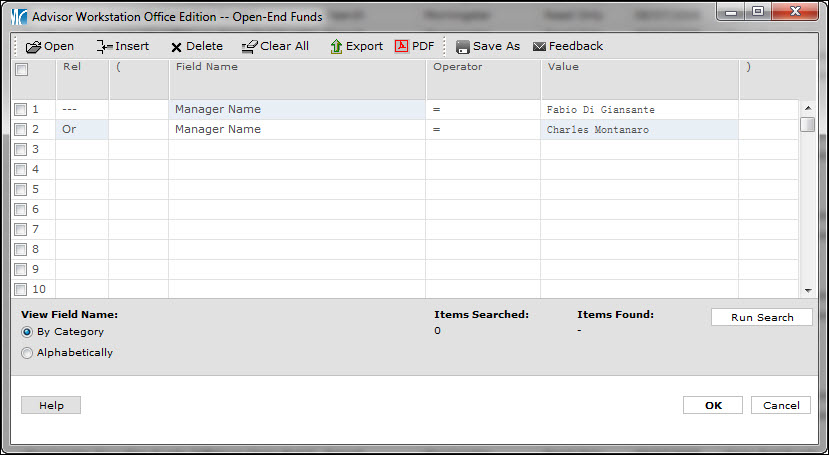
You can add multiple managers at once by using ‘OR’ in each row of the search.
Quick Tip: When typing the name in the Manager Name box, select ‘Contains’ instead of ‘Begins With’ to search first names and surnames.
Visit the post on Analyst ratings to see read more about the managers.
The FSA recently published a list of FAQs from their roadshows on RDR. We’ve featured a few of them just below and have included helpful Adviser Workstation shortcuts.
**-If I consider a product, but I don’t feel comfortable recommending it due to its risky _nature, can I still call myself independent?
_**
__A firm should only hold itself out as giving independent advice if it is prepared to provide advice on all types of retail investment products that may be suitable for their clients. Such a firm may, however, after considering the market, take the view that certain retail investment products are unlikely to be suitable for their client base. If this is the case, then that firm would not need to carry out a comprehensive review of the market for these products for each of their clients. We would not expect firms when forming advice for a client to review the market for a product that would not be suitable, let alone to recommend such a product.
(Morningstar Quick Tip: Filter out any unsuitable products for your clients by building a custom filter in Adviser Workstation. See how to build a search by clicking here)
-If a firm has three advisers who give restricted advice, but as a team they can advise on all retail investment products, can the firm hold itself out as independent?
No one in a firm that holds itself out as independent should make a personal recommendation to a retail client unless that personal recommendation is based on a comprehensive and fair analysis of all types of retail investment products which may be suitable for that client.
(Morningstar Quick Tip: Use Morningstar Analyst Rating reports for independent, objective analysis on open-end funds, equities and investment trust funds. Click here to learn how to find the ratings)
-What is meant by relevant market in the context of independent advice?
_ **_A relevant market should comprise all retail investment products which are capable of meeting the investment needs and objectives of a retail client. To use the example of ethical products, for clients who only want these, it is clear that a range of products would never be suitable for them, namely non-ethical products. The relevant market for these clients would not include all retail investment products, but would include all ethical retail investment products. Relevant markets are defined by client needs, not by any other factor.
We expect it to be rare that an adviser could completely rule out advising on certain types of retail investment products on the basis that they will not be suitable for any of their clients, and to limit their advice to a particular relevant market. If they can identify a narrower relevant market, they should not hold themselves out as offering independent advice in a broader sense.
(Morningstar Quick Tip: Save a list of ethical and/or socially conscious funds to quickly add funds to a client’s portfolio. Click here to find out how)
Questions and responses taken from Financial Services Authority’s Finalised Guidance, February 2012. Click here to view the report and other FAQs
With Greece and Italy’s debt crisis on the front page of the news, investors are taking a greater interest in funds beyond the Eurozone. Here’s a quick search you can run to look for funds with investments primarily outside Europe:
Go to Research>Open End Funds>United Kingdom RFS Open-End Funds, then select the Search button and enter the following:
In the Value Column, you can designate how much Europe Equity (%) you’ll allow: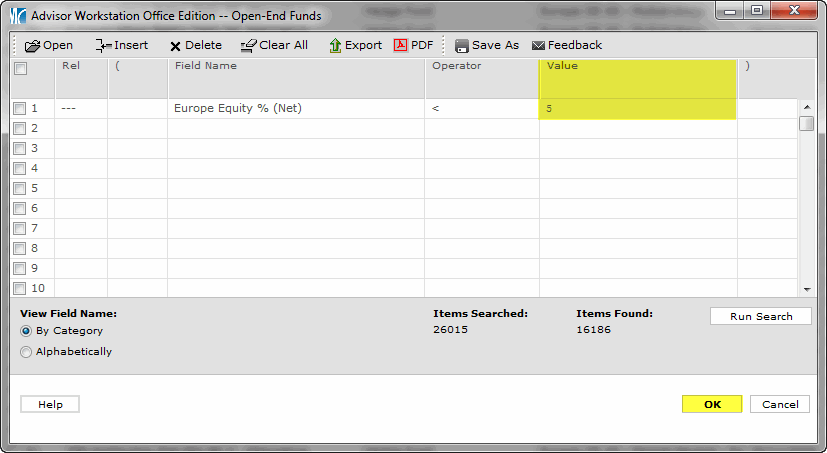
As with other searches, you can add additional search criteria in the rows below. To save the search, click Save As and enter a name.
In addition to Morningstar Star Ratings, Morningstar Analyst Ratings can add value to your investment proposition with objective, detailed fund analysis. Morningstar analysts assign a Morningstar Analyst Rating to funds using a five-point scale ranging from Gold to Negative. Analysts rate funds on a relative basis, against a pan-European and Asian universe of funds in a similar peer group. The ratings scale is unique from other firms because it includes negative ratings which allow analysts to assess and rate poor funds, as well as good funds.
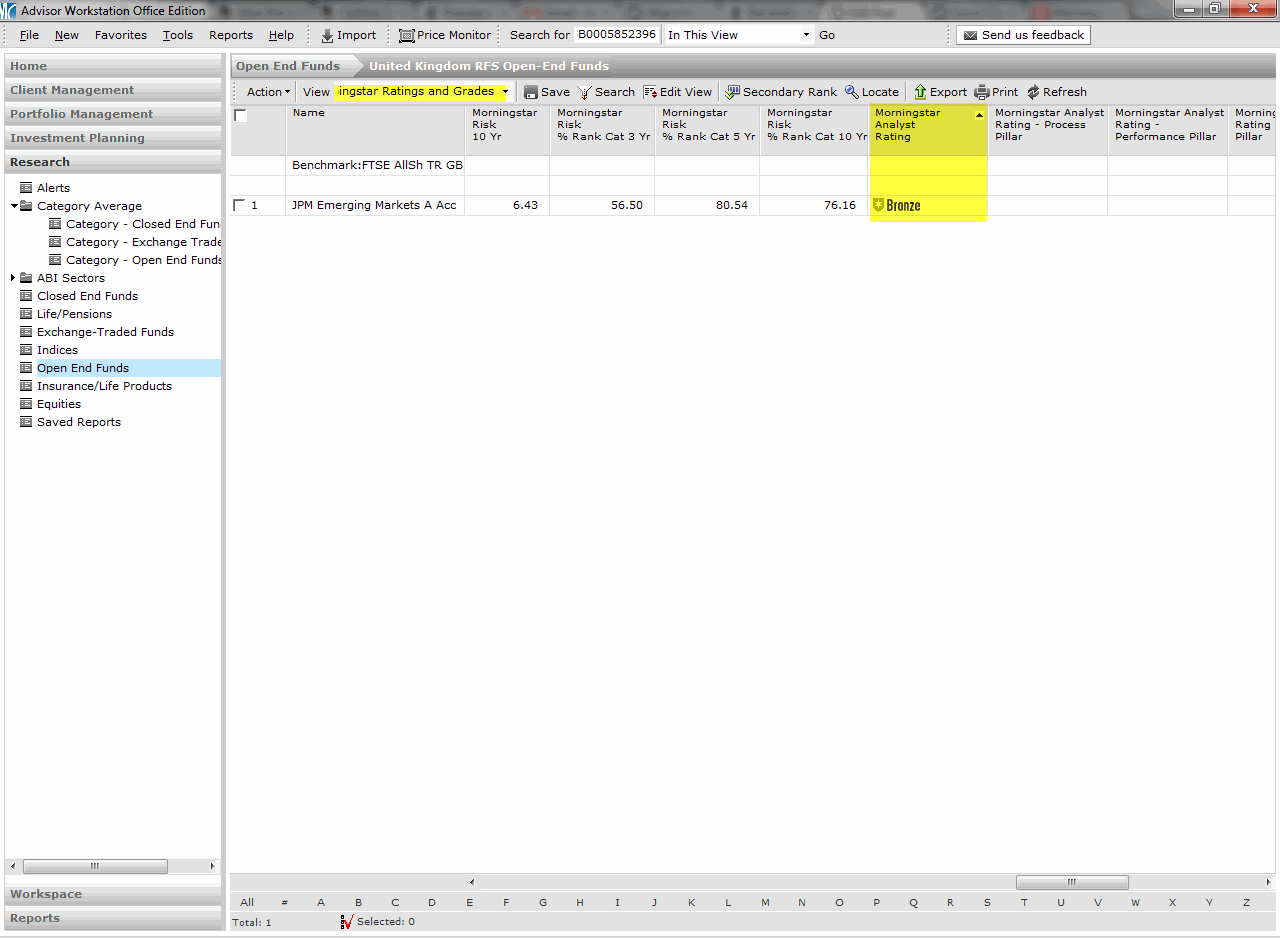
To see if a fund has received a Qualitative Rating, open the fund in an Investment List, Portfolio, Model Portfolio, or in the Research universe. Change the view to: Morningstar Ratings and Grades and scroll to the right to Morningstar Analyst Rating:
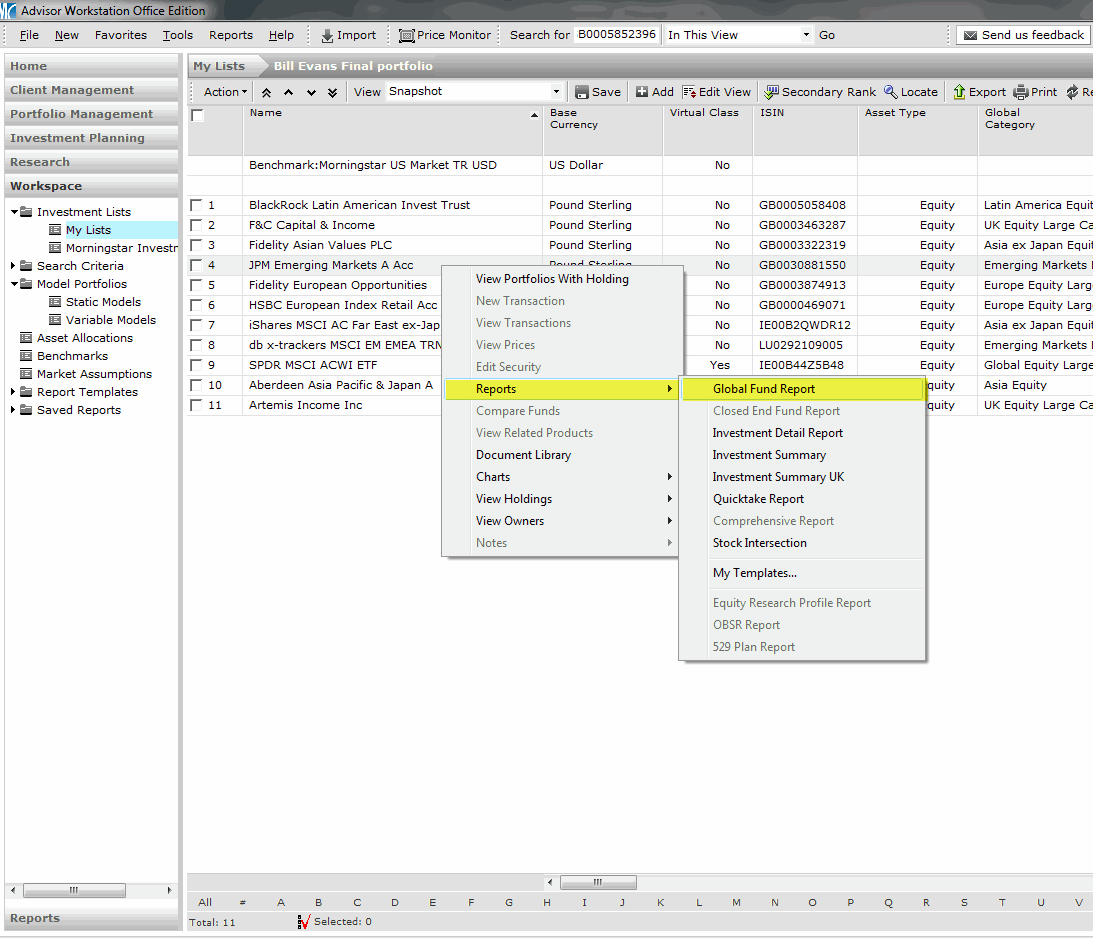
To view a rated fund’s Analyst Rating report, go to an Investment List, Portfolio, Model Portfolio or the Research unvierse: Right click on the fund’s name and select Reports>Global Fund Report:
The report will open in a new window which you can save to your computer, post to a client’s Web-Portal, or print: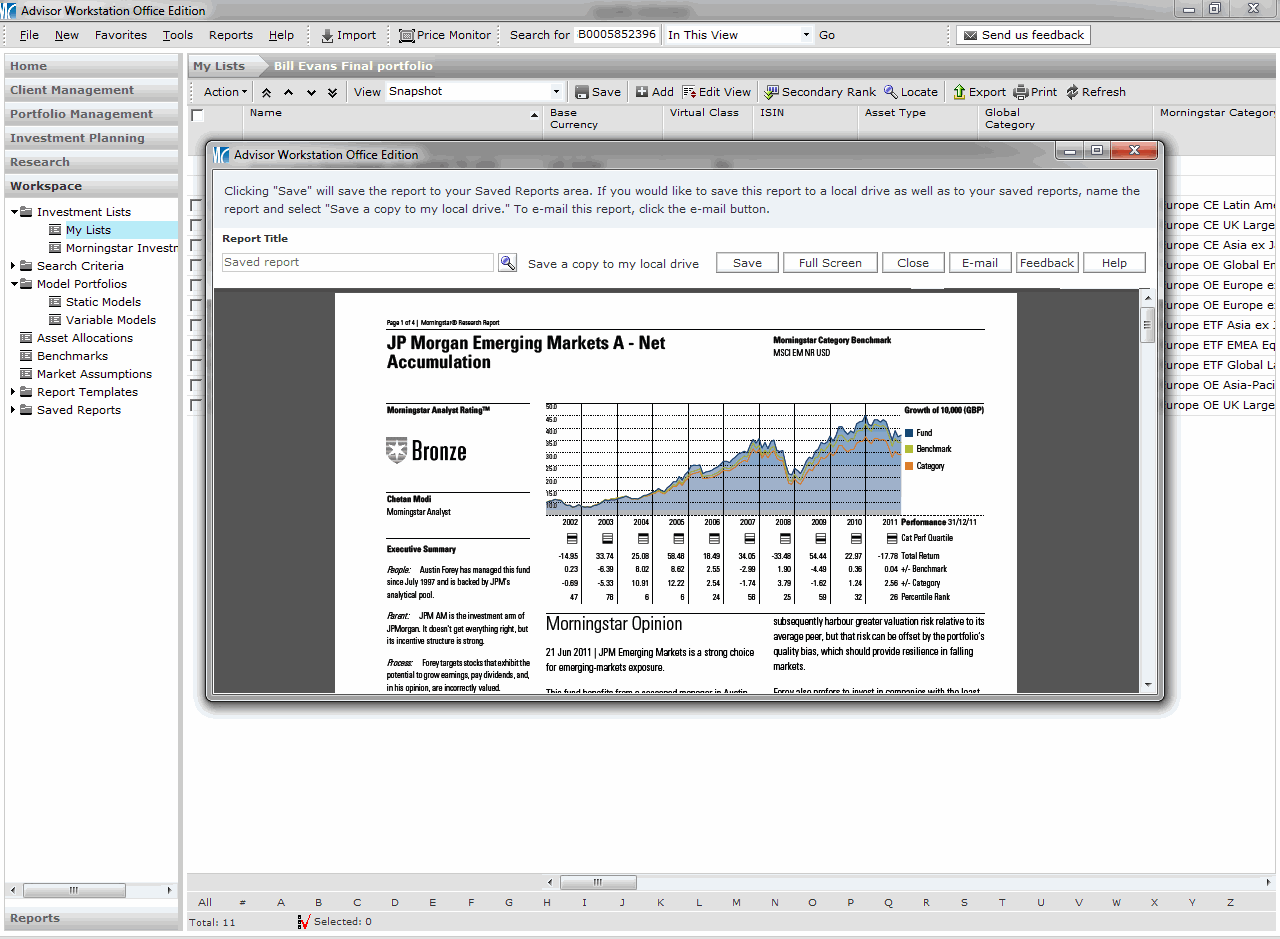
Read more about Morningstar Analyst Ratings by clicking here
(Guest post by Michael Basi, principal of Basi & Basi Financial Planning Ltd)
Success of any business is, first and foremost, determined by profit. At the risk of sounding like a stuck record, without profit, no business can survive for the long-term. All plans for the best client care in the world are null and void if a practice is not actually around to provide such!
A business in any industry, when analysing the market and judging the likelihood of generating a profit from it – must start with the consumer. What does a consumer of financial planning services want to see? It is worth noting that our industry is somewhat more complicated, given we have a “mandatory consumer” in our regulator, with a very specific list of demands and needs in addition to the actual clients we service. So let’s take their fundamental requirements at a high level;
The FSA:
- Business in line with regulatory principles
- Evidence to demonstrate this
Clients:
- High quality financial planning advice which they can understand which is….
- …predicated on full market research and includes….
- ….monitoring of the on-going suitability of these recommendations
It stands to reason that meeting consumer requirements to a required extent, at lower cost, will result in greater profit. Therefore, having the tools in place to service these requirements in an efficient manner is the centre of a profitable practice. So where to start?
Use Adviser Workstation
First, define how you are going to perform your market research. What are the criteria? Ratings? Statistical measures? Whatever your choices, turn them into a formula for each asset class and geographic split.
With our practice, we then turned these equations into search criteria in the “Workspace” area of Workstation. Within this area of Workstation, select “New search” and choose the Universe (likely Open-End funds). One “search” could then be the following criteria as an example:
– IMA Sector = UK All Companies (only funds in this sector)
– Morningstar Rating >= 4 (only funds with a Morningstar rating of 4 or above)
As you add each criteria, hit the “Run Search” button in the bottom right to watch the universe become a filtered pool. When you are happy the number of filters has narrowed down the selection accordingly, BEFORE you hit “OK”, click “Save” at the top. This will store this criteria for easy repeat at quarterly reviews. Then click “OK”.
The list that results is your point-in-time output from your criteria.
Keep an Audit Trail
Before you do anything else, from the “Action” menu, select “Save As” and select “Investment List”. I usually provide a descriptive name with the date included. This will keep your FSA consumer happy!
Now, I tend to create new model portfolios from my selected funds from each Investment List, and also date these to keep a trail of my investment decisions which I also document.
I then move to the Research section “Alerts” section and add a new alert
Communicate with the Client
So the FSA consumer should now be happy with the evidence we have. However, how does the “true” consumer, the client, know your worth? They need to see evidence of your work which they can understand. The reporting functionality within Adviser workstation is a key enabler to allow you to justify your fees.
Multiple reports are available from within Adviser Workstation, however we have settled on the following, which we find easy to talk a client through and something we can refer back to time and again;
– Asset Allocation comparison (current to ideal)
– Snapshot report
– Efficient Frontier chart
– Overal Customised Financial Planning Report
The final element, within the planning module, is most powerful. Within this, you can select almost any other available reports and combine to form a useful appendix for your covering Product confirmation letter.
But how will your client see this information? Two methods, via the web and via their smartphone.
Adding client reports to the (soon to be upgraded further) client portal allows a level of accessibility which many clients are not used to. This saves considerable time when combined with meaningful reports providing context, allowing the client to be quickly reminded of their investment plan in the light of (frequently negative) media reports.
Utilising a service such as provided by Onvestor (www.onvestor.co.uk) allows these reports and much other customised content from your firm to be available for clients to digest on the move, whilst commuting, indeed anytime. The incorporation of useful daily tools within this application is also a good idea, encouraging the client to keep your practice firmly in their sights each day.
Summary
Utilising building blocks of what our consumers actually want, together with technology available to deliver this in a cost-effective manner which self-promotes the firm can put us on the path to a bright future – both during 2012 and, more importantly, in the competitive world after this.
Michael Basi is principal of Basi & Basi Financial Planning Ltd, a independent practice, and a shareholder within Onvestor Limited, a new venture providing mobile services to financial planning firms.
If you would like to contribute to this blog, please email your submission to: adviser@morningstar.co.uk with subject line “Blog post”
This weekend we’re rolling out a new release of Adviser Workstation. With it come a number of great new features including seamless importing, advanced charting, and customizable web portals.
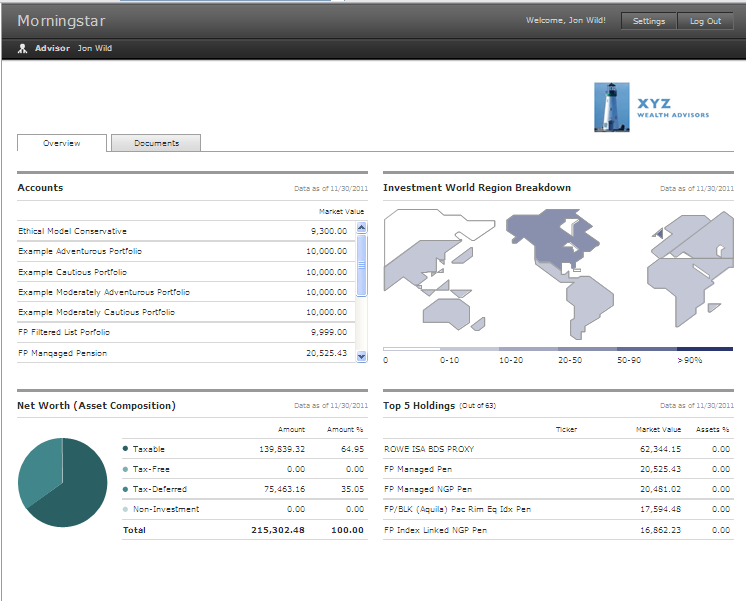
Webportal with customizable client overview
You can find the full list of new features below.
We’ll have training sessions over the next few weeks to introduce you to all the updates and help implement them into your practice:
Monday 19/12 at 10am
Tuesday 20/12 at 10am
Thursday 22/12 at 10am
Tuesday 3/1 at 2pm
Wednesday 4/1 at 10am
Friday 6/1 at 2pm
New Features
Positional History Tracking – we have enabled the ability to track changes over time within your model portfolios and client portfolios, without the need to track the full transactional history.
Flexible Portfolio Report – The snapshot report will have options for you to pick and choose which sections you want to include. This is also enabled within batch reporting to allow for simpler reporting options
New, Improved Webportal – Now with an overview of investments screen including list of client portfolios with valuations, asset breakdowns and geographic breakdowns. Client document upload feature, so clients have a way of providing signed documentation back to you with audit trail.
Quick access to Efficient Frontier – Under the main menu you will have quick access to the efficient frontier tool to allow you to quickly check your client’s portfolios risk and return. There is also a flexible report option.
Transact seamless import – for advisers using the Transact platform, you can now bring in your data directly to adviser workstation. You will need to have a data transfer agreement set up with Transact.
Income Charting – new charts that provide analysis on income
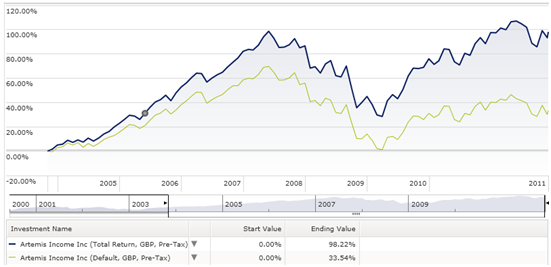
Income vs. No Income Chart: View the effect of reinvesting dividends on performance
Holdings Similarity Charts – charting tool that helps provide analysis on how similar the underlying holdings are to index tracked – this feature helps to highlight closet tracker funds.
If you would like to learn more about any of the above we are holding special traning sessions on the following dates, use the link to register: https://www.formstack.com/forms/?1147562-V2J4VbuM3h
 If you ever need to gather fund fact sheets, annual reports or fund prospectuses from the websites of asset managers, you can now gather these documents in Adviser Workstation. In the Research area, just select the fund for which you need the fact sheet/annual report/prospectus and click on the Action button. Then click on “Document Library.” This will give you PDF versions of the latest documents Morningstar has collected from the asset manager.
If you work with direct equities you’ll find a wide range of publicly available documents for each company – again, in Research, select the stock, click on the Action button, then “Document Library.” Here you’ll find quarterly and annual reports, announcements, proxy statements and insider activities.
Happy searching!
Below is a collection of frequently asked questions and answers. We hope you find these helpful as you get to know the system. If you do not see an answer to your question, please contact the help desk on 0203 107 0050 or email us – adviser@morningstar.co.uk
1. Question:
I double clicked on the name of the fund to open the fund factsheet, then I clicked on Print button, which opened another window, but in there was no Pint button anymore. How do I print this fund factsheet?
Answer:
To print the fund factsheet please double click on the name of the fund and then click on Print button (NOTE: this button will put together all of the tabs of this page). Once the second window is opened please click on CTRL +P on your keyboard.
HINT: To see the same kind of data but in a different one page report, please right click on the name of the fund and go to Reports and Investment Summary UK (NOTE: this report is in a PDF format)
2. Question:
It is already a 2nd day of the new month and I am not able to produce the reports\charts for the last month end. What are the reasons for that?
Answer:
It usually takes up to 5 working days for our database to process all last month end data. We kindly suggest trying to run the reports on at least 3rd working day of the new month.
3. Question:
I would like to change the name of one of my client portfolio. How would I do it?
Answer:
To change the portfolio name please kindly double click on the name of the portfolio and then please click on Profile/Settings and Portfolio Profile. Then in the box Portfolio Name type in the new name for your portfolio. To finish please click on OK on the right hand side bottom corner.
4. Question:
How can I change a benchmark which is assigned to my portfolio?
Answer:
To change a benchmark for your portfolio please double click on the name of you portfolio and then click on Profile\Settings and Portfolio Settings. Next to Primary Benchmark name click on the dropdown and choose Select Benchmark. Once the new window appears search for the desired benchmark. Once selected click on OK and then OK on Portfolio Setting tab.
5. Question:
How can I make a copy of my portfolio?
Answer:
To create a copy of your portfolio double click on the name of the client name, and then please tick the box next to portfolio name, then please go to Action\Edit\Copy Portfolio. In the new window which opens up you can change the name of the portfolio and the client for which the copy should be assigned to.
6. Question:
How to compare my client portfolio with a model portfolio?
Answer:
To compare a client portfolio with a model portfolio you can create a Compare with Model report. To do this report please double click on the name of the portfolio, then go to Reports tab and choose Analytical Reports\Compare with Model.
To run this comparison on the chart please go to Tools\Portfolio Graphs\Investment Growth. Once the chart is generated please click on Edit Investments and within Universes please click on the dropdown and select Model Portfolios. In the search box type in the name of the model portfolio and click on Go. Once the name of the model is showing under Available records please select the model and click on Add and OK.
7. Question:
I would like to compare two of the funds within my portfolio. How can I do it?
Answer:
To compare two funds against each other please tick the boxes next to fund names and then go to Action\Fund vs. Fund. This will generate a report which can be saved\printed in PDF format.
8. Question:
Where I can find a blank risk questionnaire that I can print?
Answer:
To access risk questionnaire please go to Client Management section and then double click on name of one of your clients. Then please go to Client Profile\Risk profile and click on Print Blank Questionnaire.
9. Question:
How can I change client name?
Answer:
To change a client name please go to Client Management section and double click on the name of the client, then choose Client Profile\General. Then type in the new details in Client name, First name and Last name boxes. To save the changes please click on Save button on the right hand side top corner.
10. Question:
How can I change the base currency of my Research area?
Answer:
To change a currency for Research area, please go to Home page\Settings and then double click on Preferences under Research. There you will be able to see box Currency. To change this currency please clicks on the dropdown a pick a currency of your interest and then click on OK.
11. Question:
I want to edit my quick portfolio, how can I do it?
Answer:
To make any changes to your quick portfolio please double click on the name of the portfolio and then click on Add Holding. Within this window you can make any changes to number of units or amounts invested for individual holdings. Once this change is made, please click on Finish.
12. Question:
I would like to add cash holding to my quick portfolio, how can I do it?
Answer:
To add cash to your portfolio please double click on the name of your portfolio then click on Add Holding. This will open a new window with three tabs at the top. Please click on Cash tab and then on magnifying glass. And hit on Go button. That will show you all cash holdings available in your Adviser Workstation. The standard cash used is Default Cash (UK). Once selected please click on Add and OK. In column Amount in Base Currency type in the amount you would like to include and click on Finish at the bottom.
13. Question:
Where can I find training related documents?
Answer:
To access training classes which are run on a daily basis and reoccur every week, please click on Home page\Support + Training. In the middle of your screen you will be able to see a list of classes to register. To sign up for a class please click on one of the links and select the date of when you would like to attend and fill in all of the below details and click on Register.
Training Videos are available under Home page\Articles + Commentary\Training\Click here for Adviser Workstation Training Videos. This will show you the list of various videos which are very useful.
14. Question:
I am new to the system. Can I get some guidance on how to use it?
Answer:
The best way to familiarise yourself with the system is to attend our online classes. To register for the classes which re-occur every week. Please go to Home\Support+ Training\List of classes to register. Then please click on the links under each class and fill in your details and click Register.
15. Question:
I would like to add a new client to Adviser Workstation.
Answer:
To add new clients please go to Client Management section and click on New\Individual Client. This will open General box where you will be able to enter client details. NOTE: Please make sure that all the fields written in blue are obligatory.
Once the details are filled in please click on Save button in the top right hand side.
16. Question:
I would like to fill in my clients risk questionnaire. How can I do it?
Answer:
To fill in risk questionnaire please double click on name of the client for whom you would like to fill in questionnaire. Then click on the Client Profile\Risk Profile\Questionnaire. Once the questionnaire is filled in click on OK and Save.
17. Question:
I am looking for a fund but don’t know the universe of it. What is the quickest way to tell if you have this fund in your database?
Answer:
The quickest way to find a fund is to click on New\Investment List and under Single Investment search box type in the ISIN code of the fund you are looking for. As you type in the search will be narrowing down and it will allow you to click on the fund of your interest.
18. Question:
I want to update my company address and telephone number. How can I do it?
Answer:
To change your company details please click on File\Update Profile. On Update User Profile please enter all new details and click on Continue.
19. Question:
I would like to add my company logo to the cover page of my reports.
Answer:
To add logo to your cover page please go to Home page\Settings\Portfolio Accounting System Settings\Preferences where you can load logo by clicking on magnifying glass next to Add Logo to Cover Page or Add Logo to Footer. Once the logo is uploaded please click on Save + Close.
20. Question:
I would like to report on all of my client portfolios together. Is there a simple way to do it?
Answer:
To show all of your clients holdings (from all portfolios) double click on the client name and tick the boxes next to portfolio names then go to Action\Utilities\Portfolio aggregate. This will show you a message: ‘Aggregate duplicate securities?’ click on Yes. This will create a list of all holdings available in the portfolios that were included in aggregate. Then you can click on Reports and run the reports as usual.
21. Question:
I would like to compare 10 portfolios at once. Is there is a way to do it?
Answer:
To compare few portfolios please tick the boxes next to portfolio names and go to Action\Portfolio Graphs\Investment Growth. You can compare up to 15 portfolios on one chart.
22. Question:
I would like to set an alert for one fund and I would like to receive it every time the price moves more than 5%.
Answer:
To set up an alert for a single security click on New\Alert\Security. Chose the alert type, i.e. price % movement threshold crossed. Find the security then chose the type of notification.
23. Question:
I want to change the default data points view to my own set, so when I go into my portfolio I do not see the snapshot data points.
Answer:
To save your own data point set to default for a portfolio you must first go into the desired portfolio click on Tools\Settings\Set Default View. Scroll through and find your custom data set. Please note, this will only be applicable for that particular portfolio.
To change the data points in an investment list you will need to go into the investment list click on the View Drop Down Box and select “My Data Set”. Chose the data set and click “OK”. Once this is done click “Save” to keep that data set as a default for that investment list.
24. Question:
I cannot find bonds or gilts, is there any way I can include these in my portfolios?
Answers:
Yes. To create your own type of security which is not covered in the Morningstar database is possible. To do this you will need to go into Tools\Edit Definition Master.
25. Question:
I have a fund which is not classified or the asset allocation is missing, what do I do?
Answer:
To check which of the funds in your portfolio is not classified you will need to check if it has Portfolio Data. To do this, firstly select the Data Point “Portfolio Data Ready”. The fund which is not classified will say “No” in the column.
To reclassify the fund please find instructions below.
To access, click Tools, then click Edit Definition Master.
Security Reclassification
To reclassify a security, follow the instructions below:
1. Select Reclassification in the left-hand panel menu.
2. Click Add, then locate and select the security you wish to reclassify.
3. Tick the box to the left of the security, the click Action.
4. Click on Reporting Asset Class drop-down and select an asset class. Click Save+Close
5. In the Classification Source column, click to select User Defined.
6. In the Classification column, click on the magnifying glass.
7. Select the Reporting Asset Class at the top of the page.
8. Enter the desired percentages for the asset classes, then click Save+Close.
9. Once complete, exit Definition Master and refresh Adviser Workstation
Note: You must enter percentages in the Classification dialog box in order for your reclassification to be recognized.
The changes you make to the composition of an asset class will affect the planning module, account asset allocation view, and the following reports: Current vs. Target, X-Ray, Snapshot, Performance by Asset Class, Performance History by Asset Class, and Portfolio by Asset Class. If you assign a new asset class but do not change the composition, the change will not be reflected.
26. Question:
How can I change my Clients email for the Web Portal?
Answer:
You cannot change the email address once submitted. If you mistakenly submit the wrong email address, you should immediately click the Disable button to disable access, remove any reports from the Client Web Portal for that Client, and contact Customer Support to reset the login for that Client.
27. Question:
When I add funds to an Investment growth chart it says “Cannot Retrieve Total Returns”
Answer:
The reason there may not be any performance data can be because the fund company currently do not provide with any performance data. To check this, within your portfolio, click on “Edit View” and select the data point “Performance Data Ready”.
28. Question:
There is no asset allocation, stock sector information or world region stats for the fund\portfolio report.
Answer:
A lack of portfolio data indicates that the fund company do not provide with portfolio data. To check this within your portfolio, click on “Edit View” and select the data point “Portfolio Data Ready”.
29. Question:
I don’t have an ISIN Code, how can I search by Sedol or MEX code?
Answer:
To search for funds with out an ISIN Code, go to the Research area, click on Life\Pension Funds then on “Search”. In the field name section you can select to search by a Sedol Code or Mex code. The results will show you the list of the funds for which you have included the MEX codes.
30. Question:
How can I understand the different risk profiles?
Answer:
To view the definitions for different Risk Profiles go to a clients account and click on “Client Profile” then on “Risk Profile”. Click on each risk profile to get a description about that profile.
31. Question:
How can I view a list of clients which hold a specific fund?
Answer:
Click on “Portfolio Management” then “Securities in Portfolios”. To view which clients hold a certain security, check the box, click on “Action” then “View portfolios with holdings”.