Unless you are starting a new service from scratch, it is likely that you already hold client data in various platforms, providers and other pieces of software. Morningstar have recognised this, and in order to save you the tedious task of re-entering all the information into Adviser Workstation manually, there are quick import options that allow you to transfer portfolio holdings data in moments.

Ethical investing has been on the rise in recent years, though many in the industry have been content to ignore it as a niche market, or one that under-performs compared to it’s ‘sinful’ peers. This is a notion that persists despite strong performance from this sector, and with investors increasingly looking for funds that invest ethically, Morningstar can help provide transparency on a sometimes opaque market. Click below for more information.
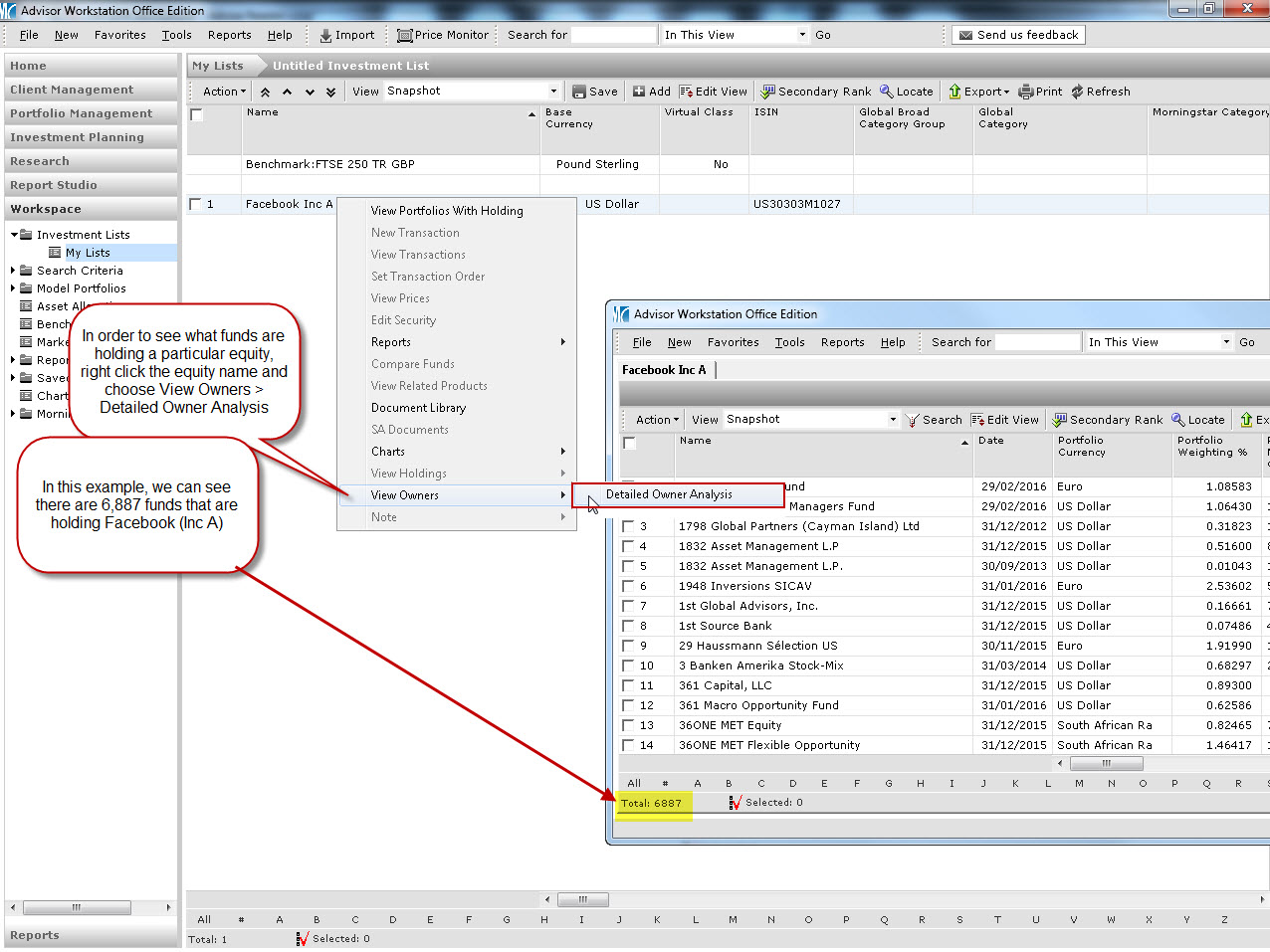
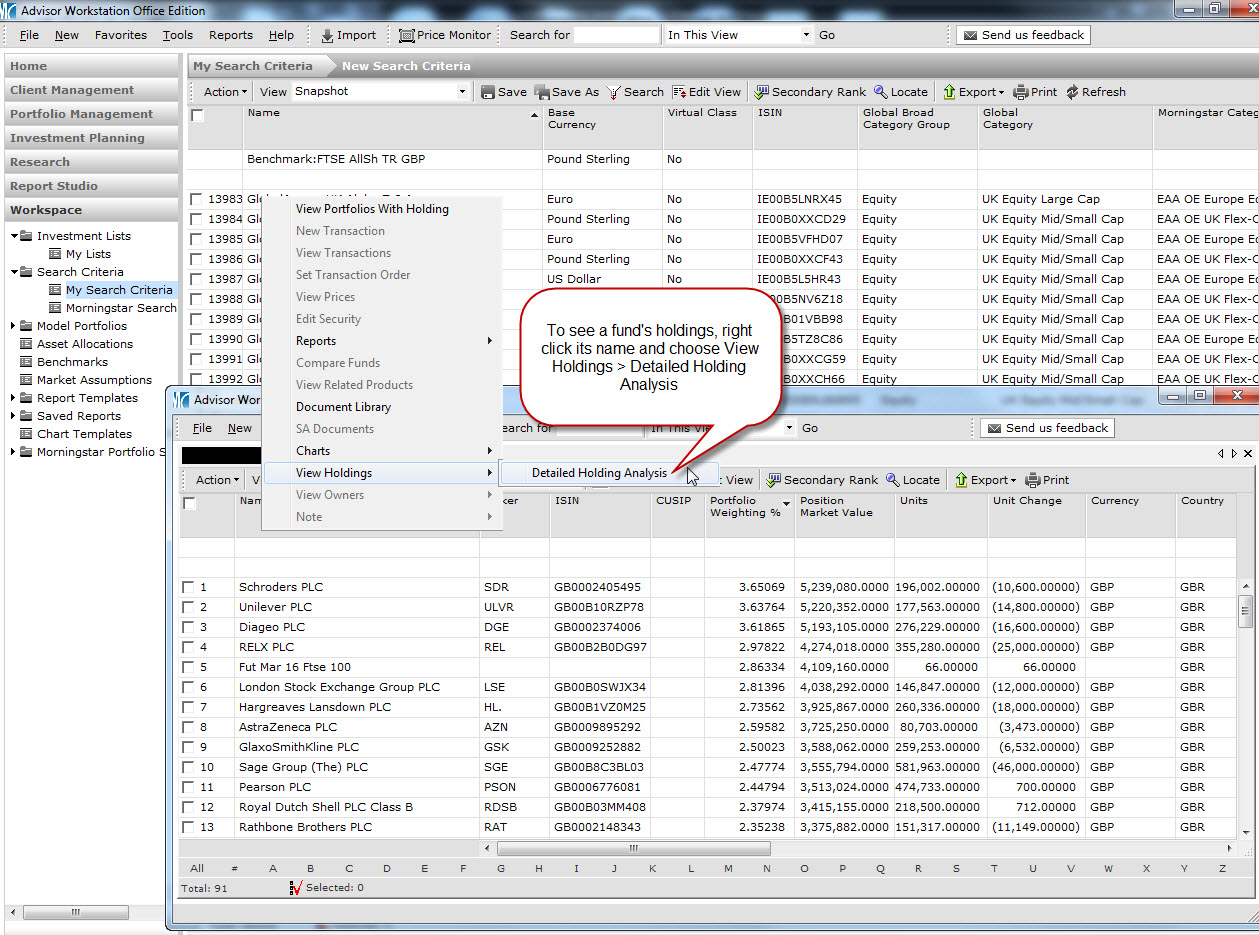
In a previous post we saw how you can view the equities a fund holds, but it’s also possible to look at an equity and see which funds are holding it. Click the image below to find out how.
If you’ve ever amended the benchmark for a client account or portfolio in Adviser Workstation, this post is for you. There is a quick way to view (and change) the settings, including benchmarks, for all your clients and portfolios in one handy window. Click here to see how to view all your client/portfolio settings, in just two clicks
Occasionally there’s the need to run a report for more than one client portfolio at a time, and this can be done quickly and easily by creating a portfolio aggregate.
Creating the aggregate portfolio allows you to run all the same charts, reports and analysis that you can do on a standard portfolio, at the aggregate level.
Click the image below for more details.
If you have the name or ISIN of a security and need more information on it (e.g. returns, risk measures, asset allocation etc.), it’s possible to search Adviser Workstation with just one click. Click here to find out how
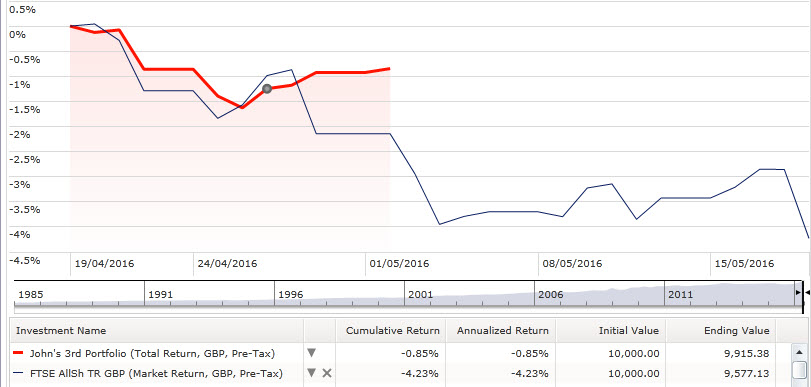
Morningstar Adviser Workstation provides the option to view detailed information for a portfolio in a single click (as detailed in this post). This shows how you can view the current data or data to the last month end, though it’s also possible to view historical data too using Portfolio Performance reporting.
Click here to see an example of the sort of report available using Portfolio Performance.
If you’d like to see what returns a client’s portfolio had over specific periods, what the up capture ratios were in Q1 last year, or if the securities were in the top quartile in 2013, these and hundreds of other data points are available to include in your report.
Click the folder icon below to find out more.